Instant
Opens at your last zoom
It opens full screen and already magnified. One tap from the Lock Screen or Control Center, too.
A magnifying glass app for iPhone
Medicine leaflets, food labels, receipts, ingredient lists. Temoto Magnifier makes small print big with your iPhone camera, and can read it aloud. It opens straight to the magnifier at your last zoom.
Free · Remove ads with a one-time purchase · iPhone with iOS 18 or later
Features
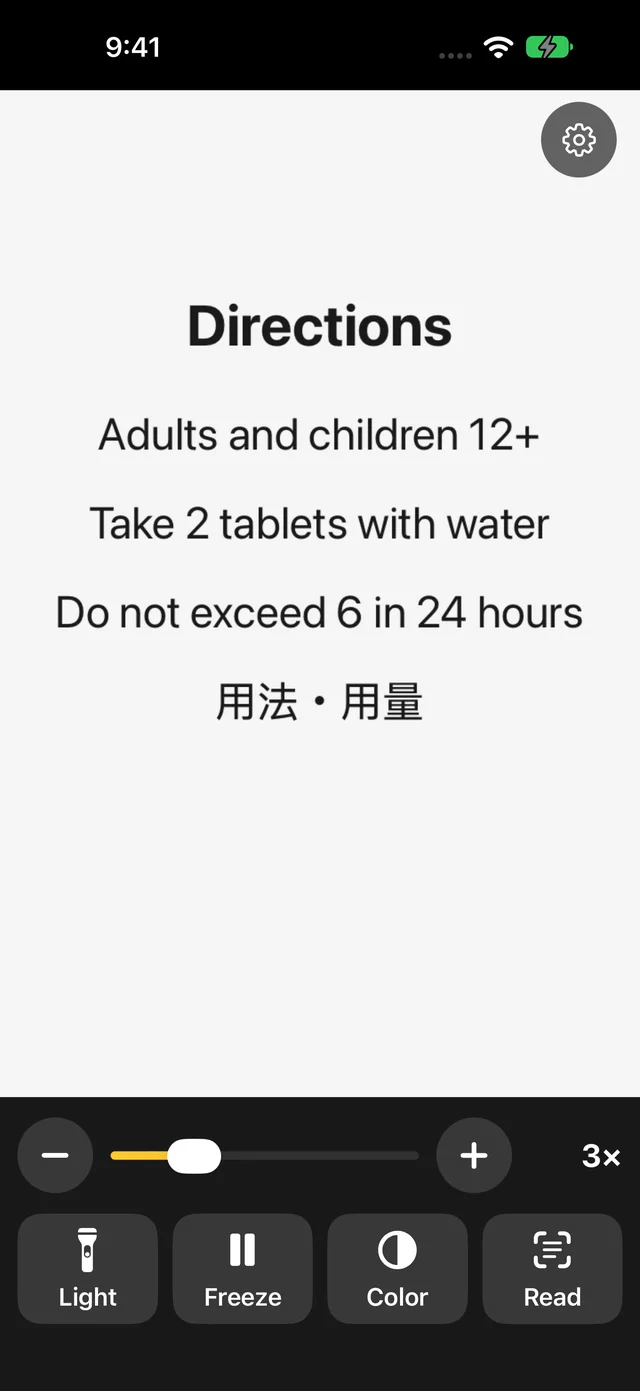
Light, Freeze, Color and Read sit at the bottom of the screen, with a zoom slider and − and + buttons above them. No menus to dig through.
Lights up dim shops and the shadow on a medicine box. Tap once to turn it on, again to turn it off.
Shaky hands are fine. Freeze the picture, then spread two fingers to zoom further. You can save it to Photos.
Each tap switches the look: sharp gray, white on black, yellow on black. See the colors
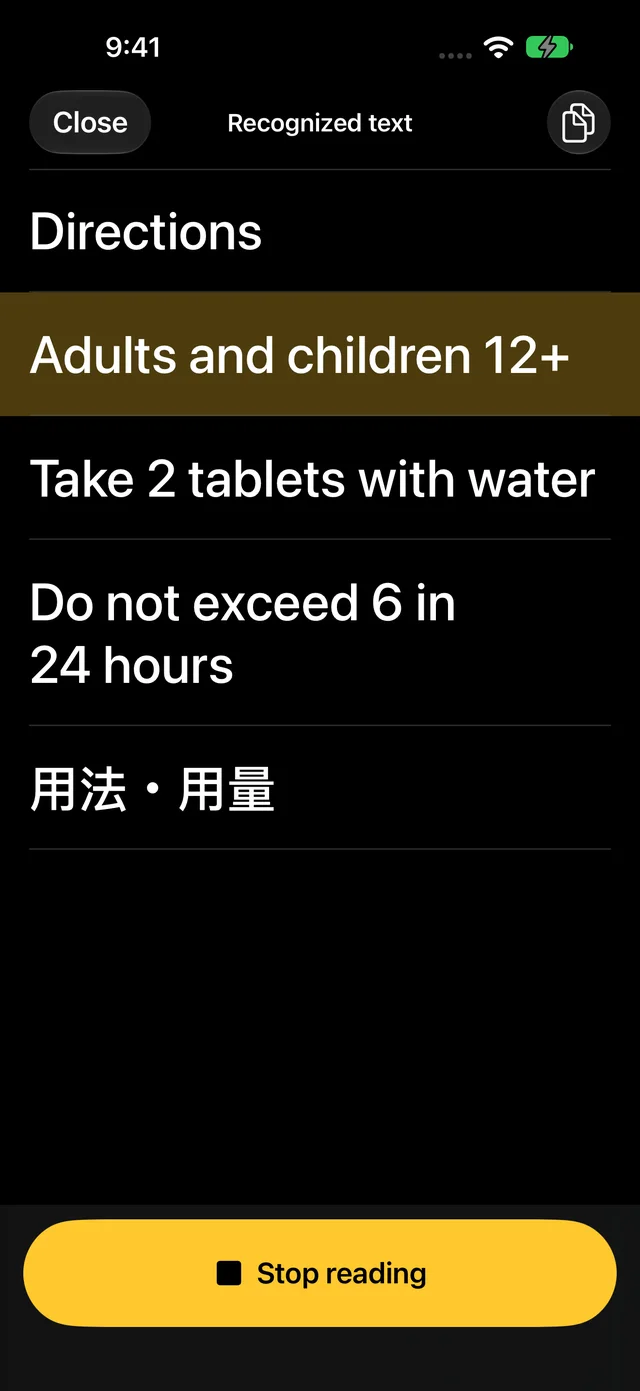
Recognizes the text on screen, shows it in large type and reads it aloud, all on your iPhone.
No ads, tips or prompts at launch. It starts at the zoom you used last.
A big slider, a two-finger pinch, or the − and + buttons. Use whichever is easiest.
On iPhones that have one, it switches to the close-up camera automatically. Tap the screen to focus there and hold it.
Keep an ingredient list or model number in the Photos app to check later.
Add a Temoto Magnifier button and open it in one tap, without unlocking.
Say "Open Temoto Magnifier" when your hands are full.
Four color modes
Each tap on Color moves to the next mode. The three black-and-white modes boost the contrast between text and background. None of them is locked behind a purchase.
Colors as the camera sees them. For colored labels and pictures.
Black text on white. Makes faint print and text on colored paper stand out.
Swaps black and white. For glare from white paper, or white text on a dark label.
Yellow text on black, a combination many people with low vision find easiest to read.
Read and read aloud
Tap Read and the text on screen is recognized and listed line by line in large type. Tap a line to hear just that line, or tap Read all aloud to hear it from the top.
Compared with iPhone's Magnifier
The built-in Magnifier app has many features and suits people who like to fine-tune. Temoto Magnifier focuses on one thing: reading something right now.
Instant
It opens full screen and already magnified. One tap from the Lock Screen or Control Center, too.
4
Light, Freeze, Color, Read. No icon-only buttons and no settings tucked away.
2 taps
Read, then Read all aloud, and the text on screen is spoken.
Guides
The best way to read each thing is a little different. Here are some tips.
Freeze the dosage and warnings, zoom in, and have them read aloud.
Read the guideCheck allergens and best-before dates right in the store.
Read the guideFaded thermal paper reads better in Sharp gray.
Read the guideTiny ingredient lists on round bottles and tubes.
Read the guideSmall labels on the back of appliances, in dark corners.
Read the guideFor long text, freeze it and let it be read to you.
Read the guidePrivacy
Your medicines and receipts are your business. Temoto Magnifier has no server and no account.
Recognition and speech on deviceCamera images and recognized text are never sent anywhere.
No sign-upWe never ask for your name or email. No analytics tools.
Honest about adsThe free version shows Google ads, so some device information goes to Google. What you magnify or read is never used for ads.
Pricing
No paywall when you zoom in. No monthly or yearly plans. Payments and refunds go through the App Store.
Free
$0forever
One banner ad at the very bottom of the screen, kept away from the buttons.
No full-screen ads while you look or read. One may sometimes appear when you close Read.
Remove ads
One-timepurchase
Not a subscription, and no extra features. It just removes the ads.
On a new phone, tap Restore Purchase to get it back.
Before you install
So there are no surprises later.
FAQ
Yes. Zoom, Light, Freeze, Save, the four color modes, Read and read-aloud are all free, with no limits. The free version shows ads. If you'd rather not see them, Remove Ads is a one-time purchase.
Temoto Magnifier opens straight to a full-screen magnifier at the zoom you used last. There are only four buttons, Light, Freeze, Color and Read, each big and labeled in words. Two taps, Read and then Read all aloud, show the text on screen in large type and read it to you. The built-in Magnifier has many more features and suits people who like to fine-tune settings.
One banner at the very bottom of the screen, placed away from the buttons so you don't tap it by mistake. There are no full-screen ads while you look, while the picture is frozen or while you read. A full-screen ad can appear only when you close the Read screen and go back to the magnifier, at most once every 3 times and once every 4 minutes, and never in your first 2 days. Never at launch.
No. Text recognition and speech both happen on your iPhone, and images and text are never sent anywhere. Temoto Magnifier has no server and no account.
It plays through the speaker, so yes. Connect earphones to listen privately. The voice plays even in silent mode, so earphones are a good idea in busy places.
Yes. Add a Temoto Magnifier button to Control Center or the Lock Screen and one tap starts the magnifier. You can also say "Hey Siri, open Temoto Magnifier". The support page shows how to add the button.
iPhone with iOS 18 or later, in portrait. There is no iPad or Android version. Read recognizes Japanese and English text.
Tap Restore Purchase in Temoto Magnifier's Settings. Family Sharing is supported.

Every feature is free. No sign-up.